Software
Discover how the real app works.
Every screen on this page is a genuine VARIANT POS capture — or a clearly marked slot waiting for one.
Every feature
Everything the software does.
Confirmed features only, grouped the way you work. Choose an area.
- Search by product name
- Search by SKU
- Barcode scanning
- Customer selection
- Quantity editing
- Price check
- Item-level discounts
- Whole-bill discounts
- Discount permissions
- Promotions and coupon codes
- Cash payment recording
- Card payment recording
- QR / UPI payment recording
- Split cash-and-card payments
- VAT-inclusive billing
- VAT-exclusive billing
- Multi-currency
- Receipts with your logo
- Multiple receipt layouts
- Receipt reprinting
- Previous bill lookup
- Hold and resume sales
- Bill voiding
- Returns and refunds
- Named bills
- Kitchen order tickets (KOT)
- Kitchen-wise KOT routing
- KOT printing at kitchen printers
- Order slips
- Table management
- Table-wise billing
- Waiter ordering on mobile or tablet
- Held orders
- Split bills
- Takeaway orders
- Delivery order management
- Recipe-based ingredient stock
- Product creation and editing
- Product categories
- Subcategories
- SKU and barcode assignment
- Barcode generation
- Label printing
- Automatic stock deduction
- Low-stock alerts
- Supplier management
- Purchase orders
- Multiple units of measurement
- Product variants
- Multiple selling prices — wholesale and retail
- CSV / Excel product import
- Branch-level inventory
- Backup and restore
- Recipe-based inventory
- Customer profiles
- Customer selection at billing
- Purchase history
- Customer-wise sales
- Customer credit
- Outstanding balances
- Promotions
- Coupons
- Separate employee logins
- Role-based permissions
- Refund restrictions
- Discount restrictions
- Cashier-wise reports
- Terminal-wise reports
- Opening shifts
- Closing shifts
- Counted cash entry
- Cash reconciliation
- End-of-day closing reports
- Z reports
- Payment-method summaries
See it work
A sale comes to life.
Six moments, from the first scan to the printed receipt — shown on genuine VARIANT POS screens.
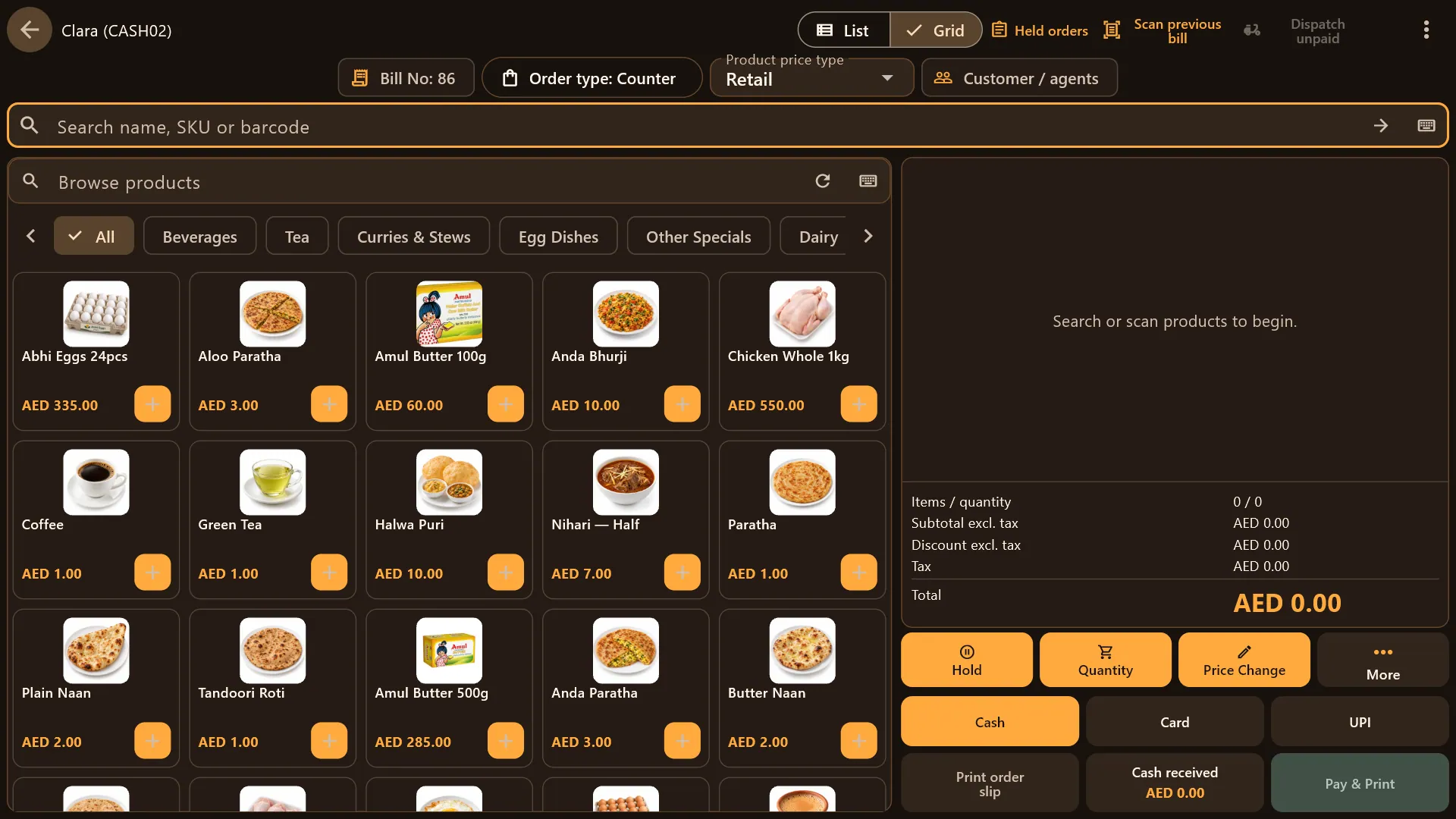
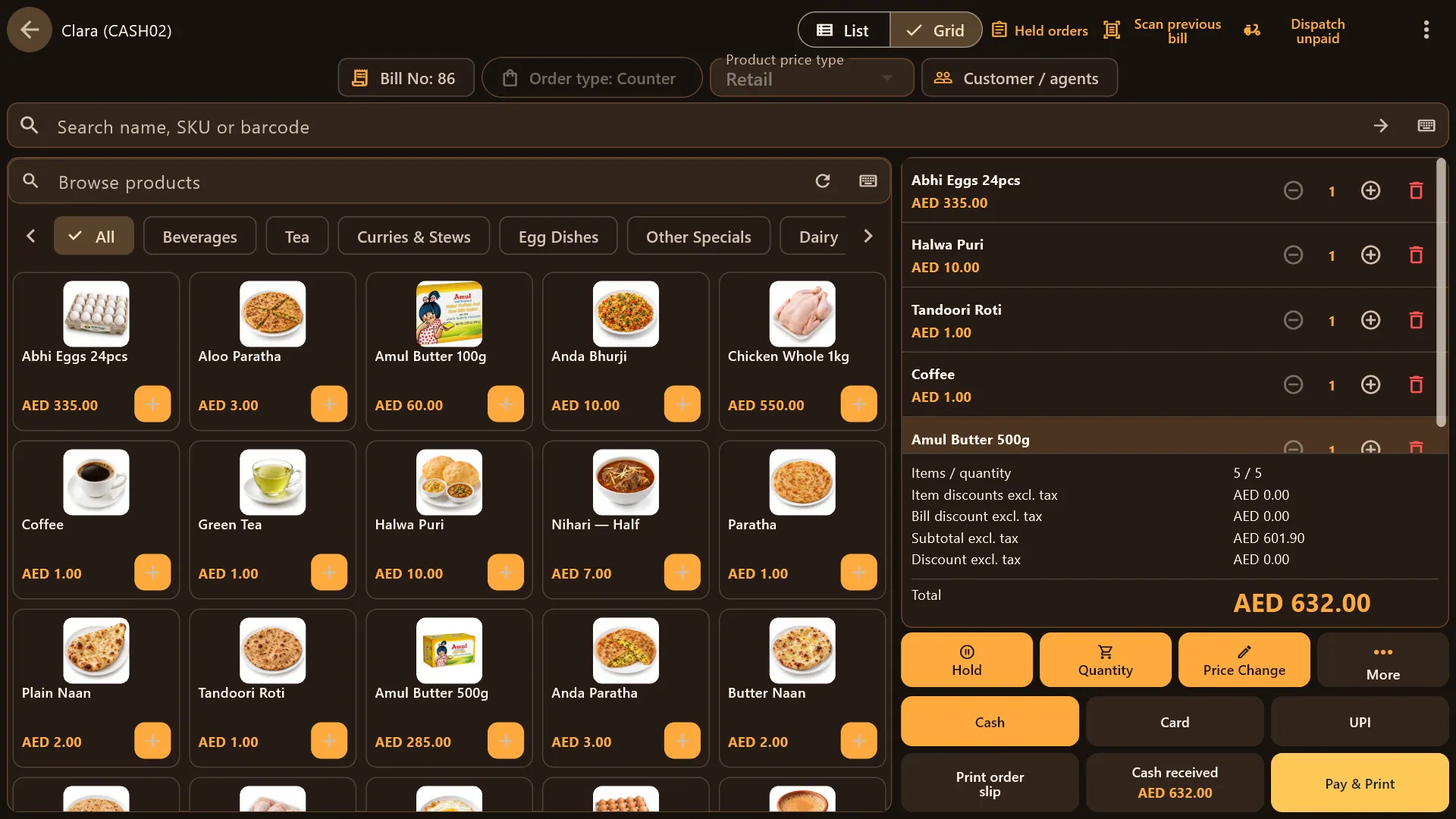
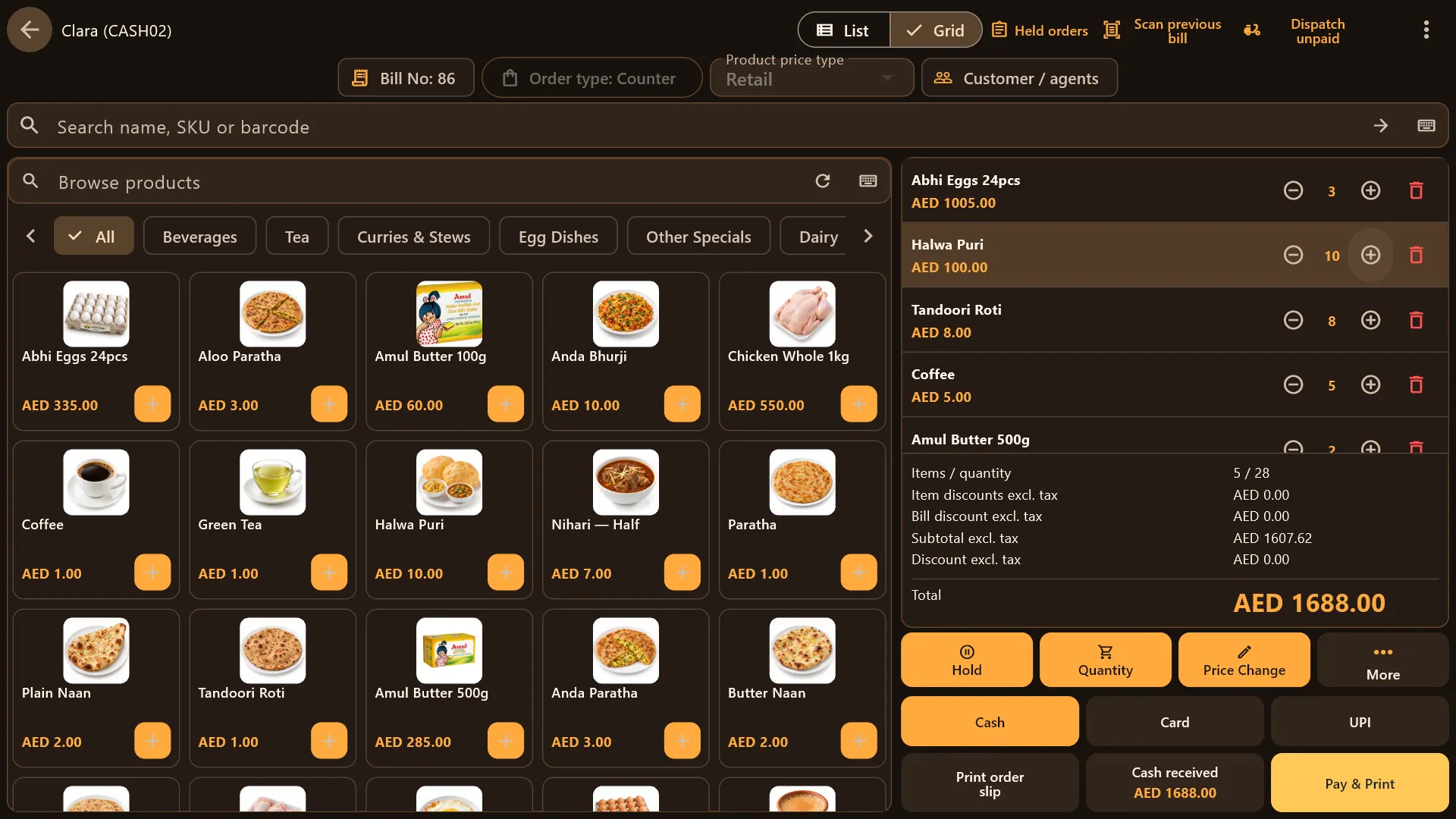
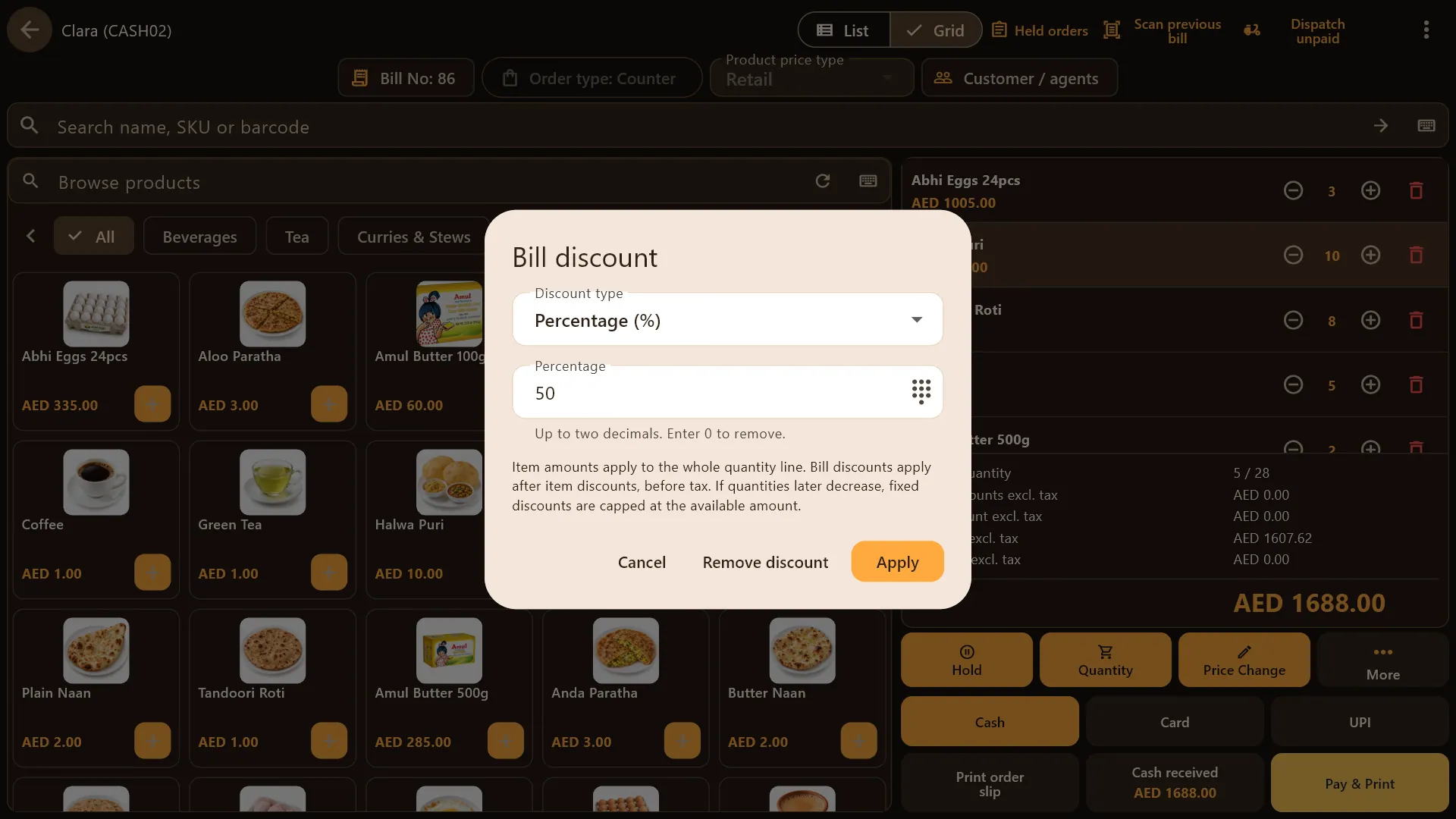
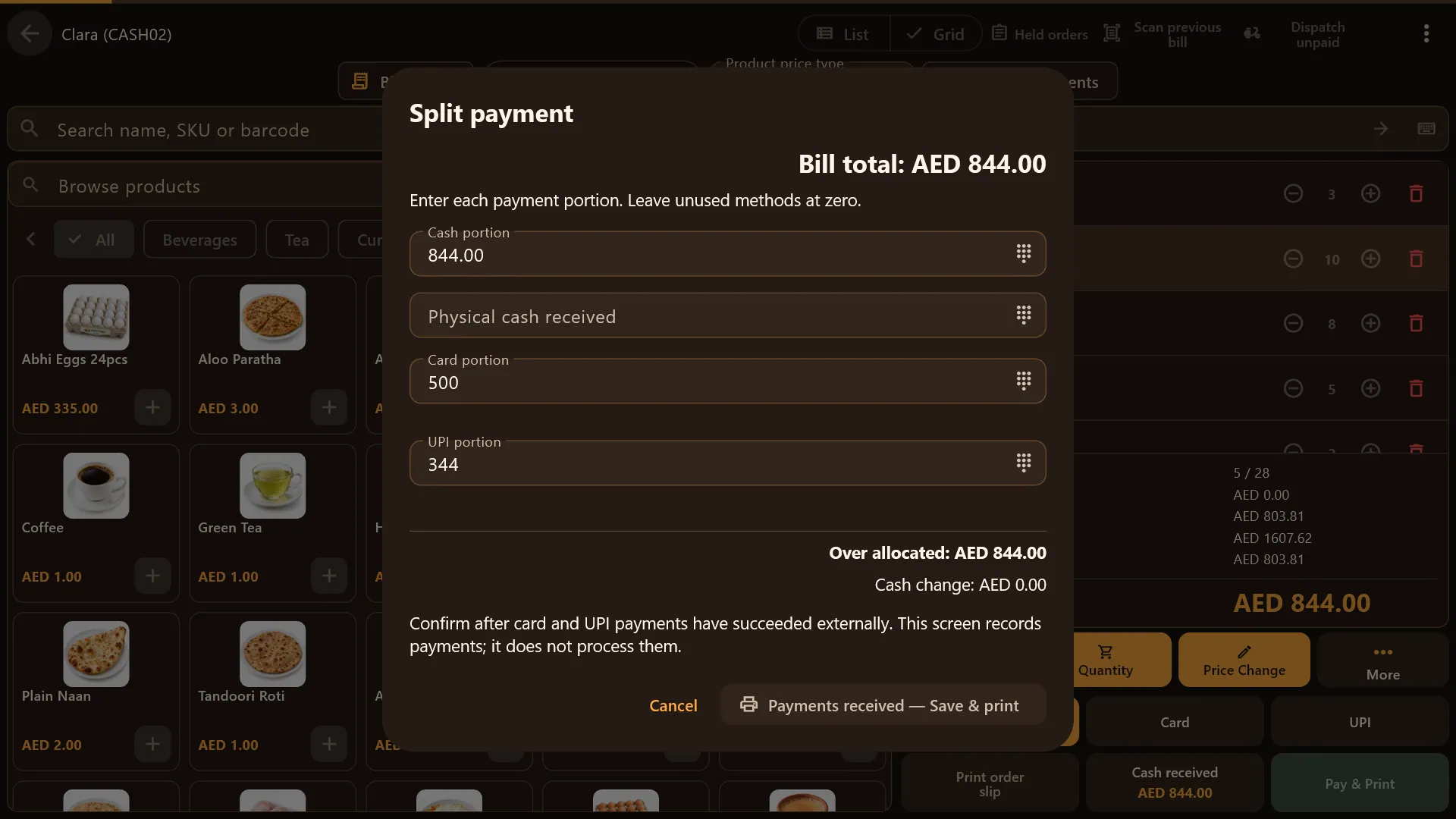
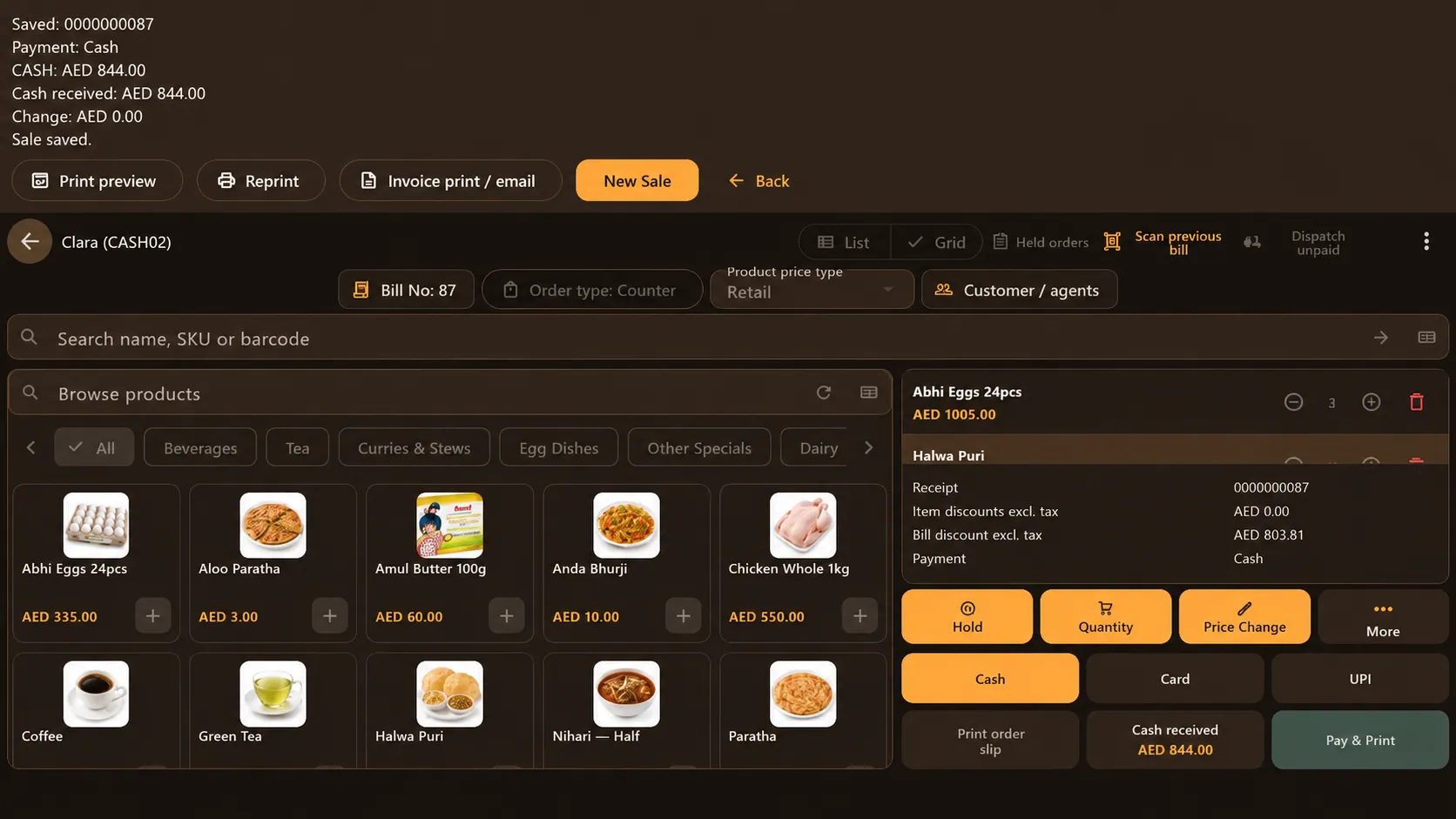
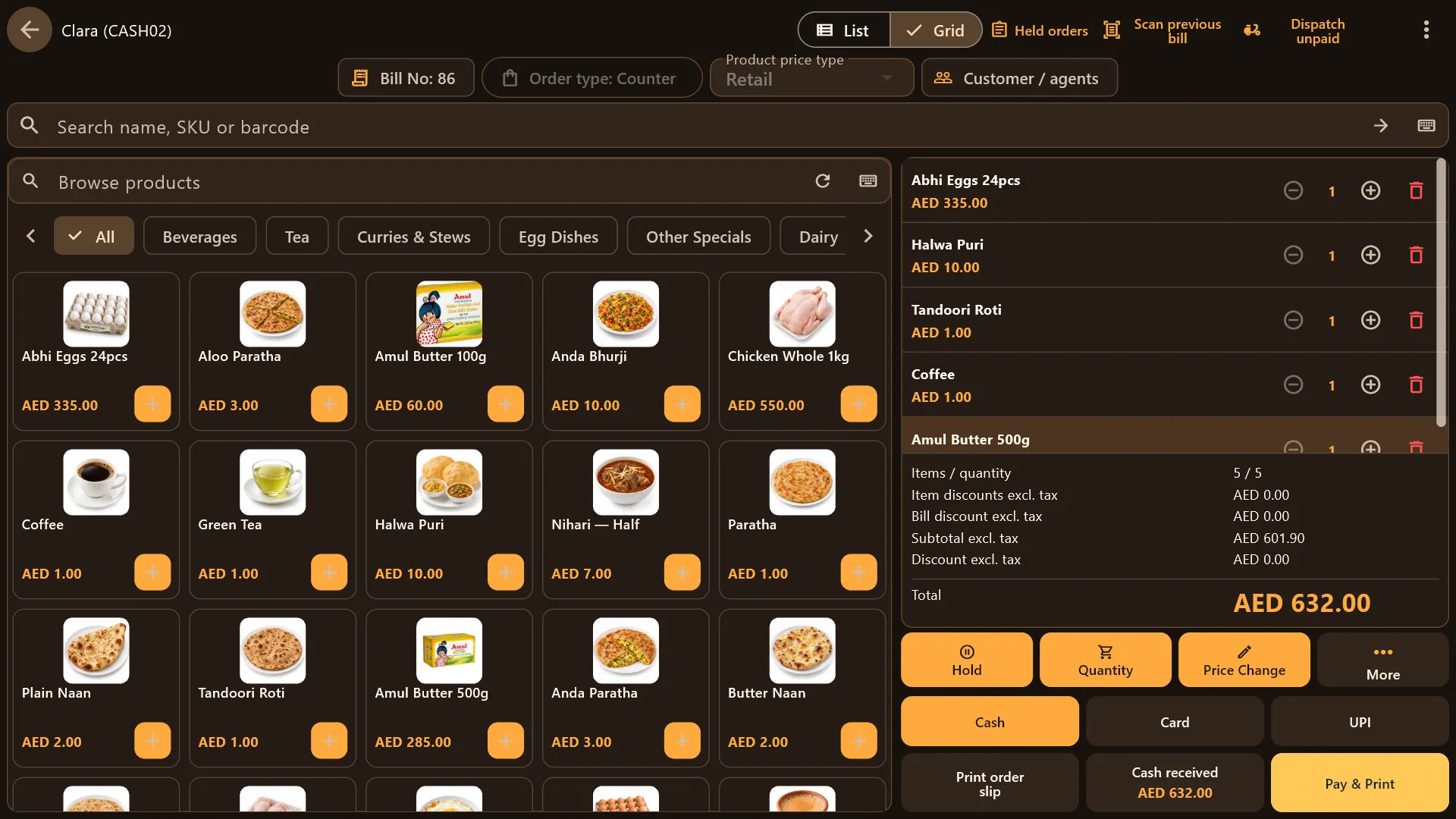
VARIANT POS records how a customer paid. It does not process card or QR payments.
Scan or search
Scan the barcode — or search by name or SKU. The item lands on the bill.
Build the bill
Every line shows the product, unit price and amount.
Adjust quantities
Change a quantity in a tap; totals follow.
Discounts and VAT
Item or whole-bill discounts, controlled by permissions. VAT-inclusive or exclusive totals.
Record the payment
Cash, card, QR or split cash-and-card — recorded at the counter.
Save and print
The sale is saved and the receipt prints with your logo.
The real bill
The receipt.
Every line accounted for. A genuine printed VARIANT POS bill — itemised, with VAT and your logo — in English, Arabic, French or Chinese.
Restaurant flow
Table, kitchen, bill — step by step.
Four everyday restaurant moments. Pick one, then tap a step or press play.
Table to kitchen.
Kitchen
Tap a table to start
Pick the table on the floor plan.
Waiters can order from a phone or tablet.
The order is confirmed — not yet billed.
A kitchen order ticket prints at the right kitchen.
Illustrative walkthrough — not the actual screen
The order slip.
An order is entered.
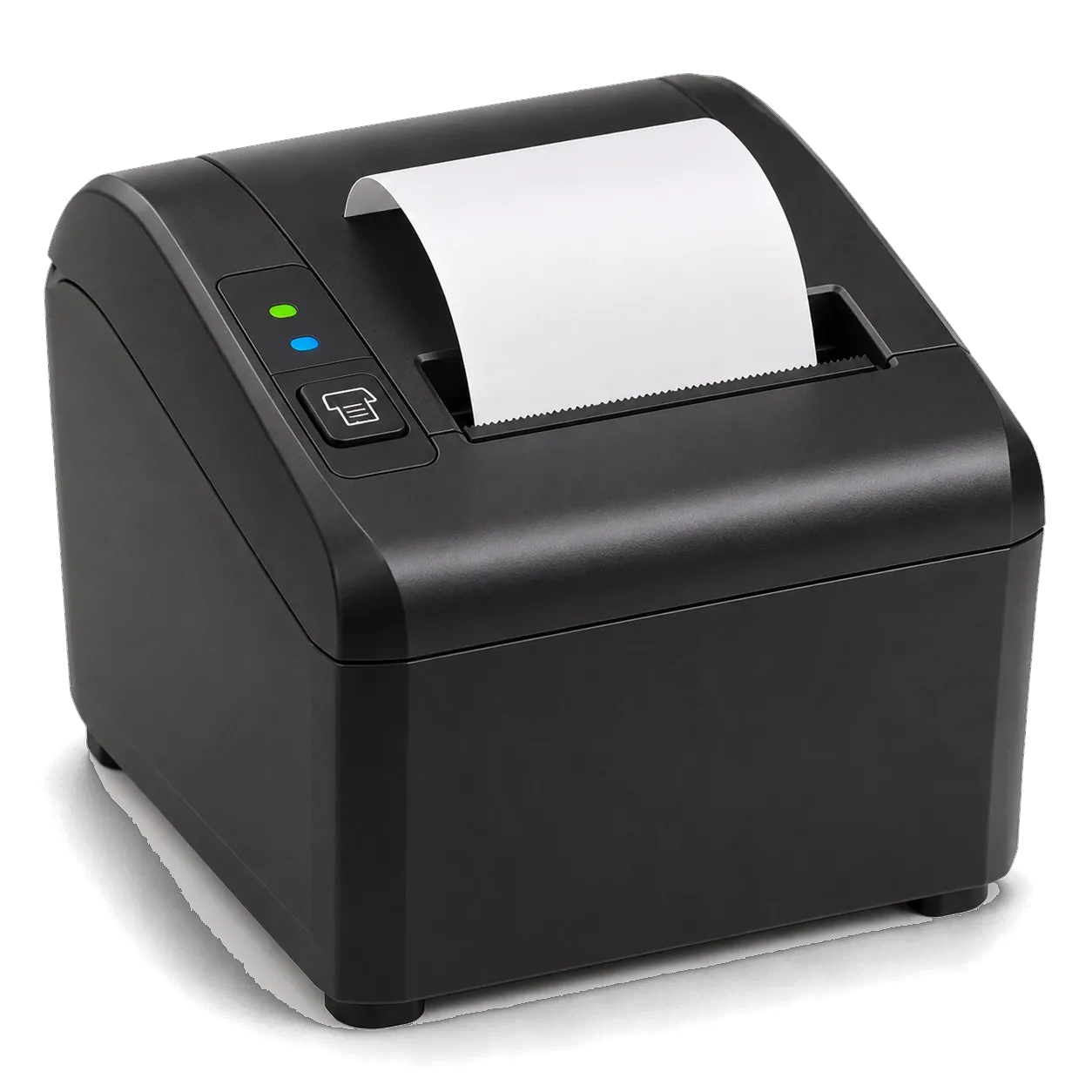
An order slip prints for the order.
The customer's bill is printed at payment.
Illustrative walkthrough — not the actual screen
Hold now, finish later.
Start an order.
Park it — a held order is not an invoice.
See every held order.
Bring it back to the counter.
Take payment and print the bill.
Illustrative walkthrough — not the actual screen
One table, separate bills.
One order for the table.
Divide the order.
Each guest gets their own bill. (Split payment is different: one bill paid by cash and card.)
Illustrative walkthrough — not the actual screen
Stock and shifts
Behind the counter.
How stock follows every sale — and how a shift is opened, counted and closed.
Stock that follows every sale.
Create the product with barcode, unit and prices.
Sell it at the counter.
Stock is deducted automatically.
An alert tells you it's time to reorder.
Illustrative walkthrough — not the actual screen
Open, sell, count, close.
Each cashier signs in and opens a shift.
Sales are recorded against the shift.
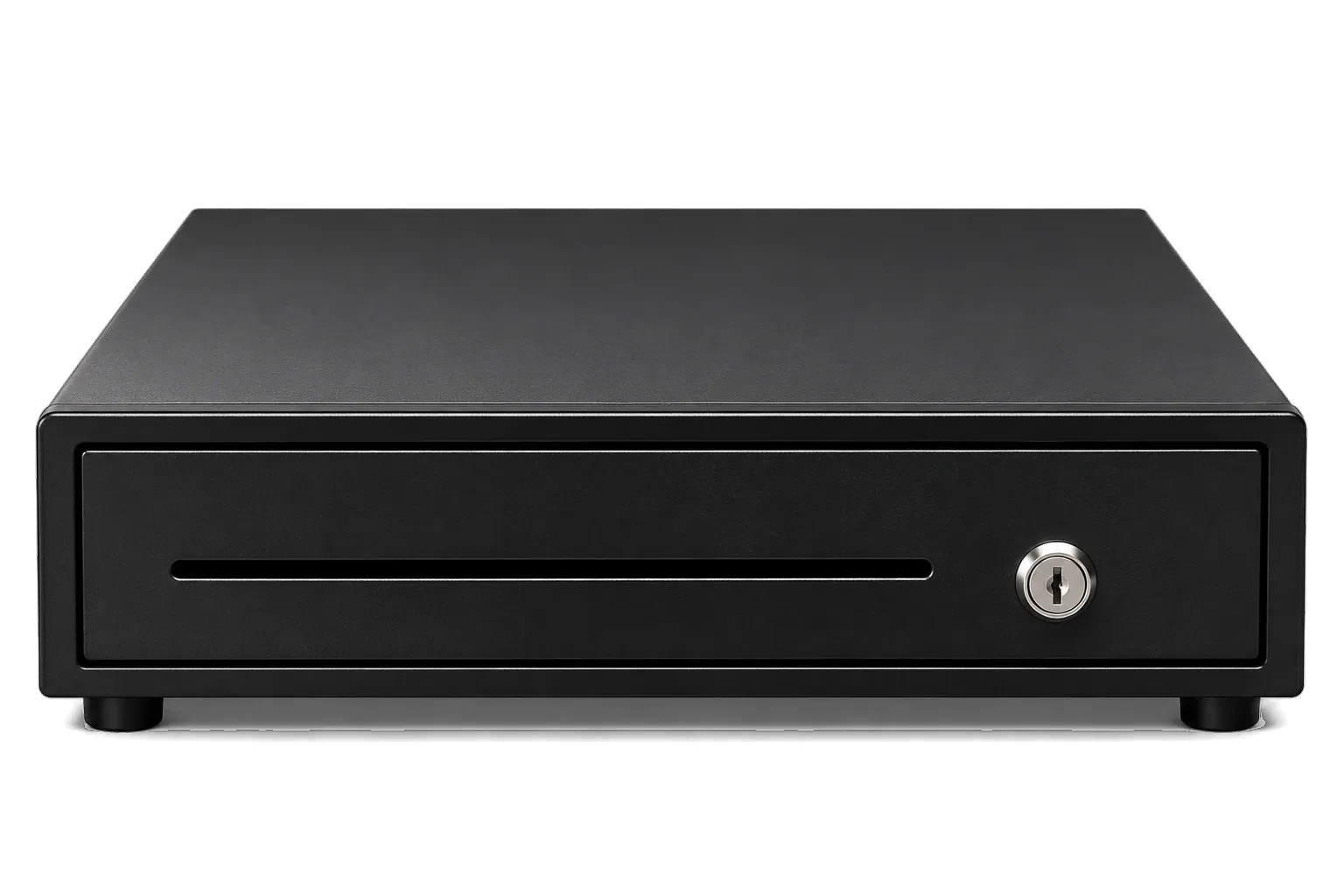
Enter the cash counted in the drawer.
Counted cash is compared with expected cash.
The shift is closed.
End-of-day and Z reports print.
Illustrative walkthrough — not the actual screen
A day at the counter
Scrub through a day.
Drag along the day and watch how the counter behaves — online, offline, and at closing.
08:00
Open the shift
Count the opening cash. Every cashier signs in with their own login.
13:00
Two counters, one product list
Terminals share products and stock over your local network. Invoice numbers never clash.
16:00
The internet drops. Billing doesn't.
Counters keep billing offline while your licence is valid.
22:00
Close the day
Compare counted cash with what the drawer should hold, then print the Z report.
22:05
Sync when you choose
Send the day's sales to the cloud dashboard with Sync Sales — a deliberate step, not a live feed.
Cloud dashboard: subscription packages.
Four languages — on screen and on paper
The POS interface and printed receipts work in English, Arabic, French and Chinese.
Tell us about your counter.
A free consultation on WhatsApp — we'll recommend the hardware, software and package that fit your business.